Rockport FX
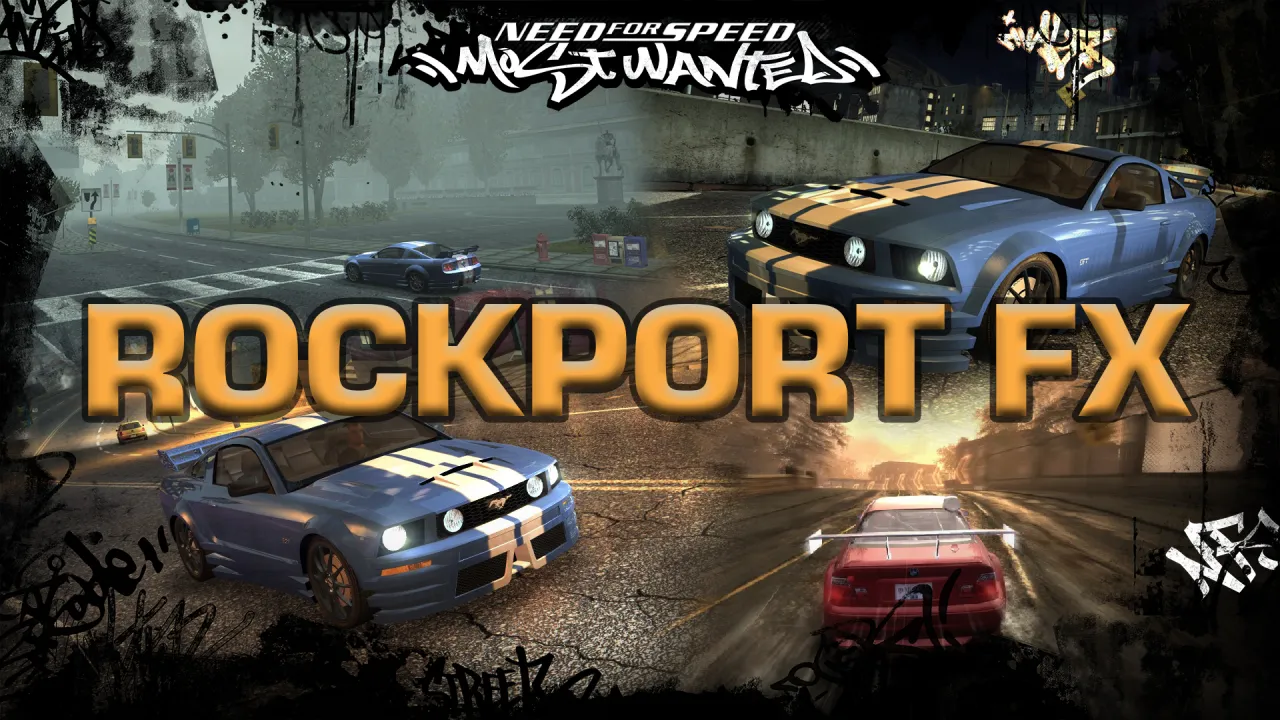
An advanced, native in-game environment and graphics control menu for Need for Speed: Most Wanted (2005).
RockportFX is best enjoyed with Plak Graphics Vanilla Edition: Get Vanilla Edition
(Use code 'CIPHER' for 15% OFF!) Download Plak VE Preset
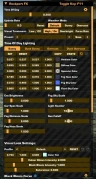
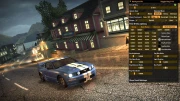
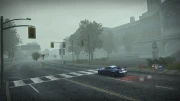
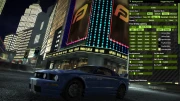
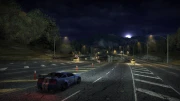
Rockport FX gives you complete real-time control over the game's Time of Day, weather conditions, lighting engine, and post-processing.
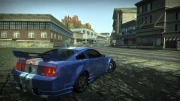
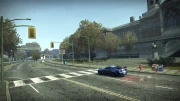
Built natively with ImGui and DirectX 9, it bypasses traditional limits to let you customize the look of Rockport City exactly how you want it, on the fly.
Features
- Time & Weather Control: Precise slider to change the Time of Day.
Speed up the time cycle, slow it down, or freeze it completely.
Toggle between Sunny/Overcast and force rain instantly.
- Live Lighting Editor: Edit the game's internal RGBA lighting values in real-time. Customize Ambient, Diffuse, Fog, and Sky colors,
along with Environment Brightness and Car Specular intensity across all weather states.
- Visual Treatment Tweaker: Toggle High/Low visual treatment and Overbright on demand.
Live-edit Color Tint, Bloom intensity, and Saturation.
- Advanced Curve Canvas: Built-in interactive spline editor to fine-tune Black Bloom and
Color Bloom curves across four nodes (Shadows, Mid-Low, Mid-High, Highlights).
- Smart Preset System: Save your custom environments as .nfsms presets.
The mod automatically remembers your active preset and loads it flawlessly on your next game launch.
Installation:
Simply Drag & Drop the scripts folder from RockportFX.zip into your game folder.
In-Game:
- Press F11 to toggle the Rockport FX menu open and closed.
- Use the Presets tab at the bottom to create, save, or switch between your lighting setups.
- If you edit the Low/High VT toggles or Weather modes, use the Reset buttons to resync the engine to vanilla defaults if needed.
Configuration:
You can customize the menu behavior by opening scripts\RockportFX\config.yml in any text editor:
- Change the togglekey (Default is 122, which is F11). (Note: Changes to the togglekey requires restart!)
- Adjust the menuscale if the UI is too large or small for your screen resolution.
- Enable or disable the developer debug console.
Credits:
- ARCHIE
- blueskywestside
- Elaymm
- HellRaven
- nlgxzef
- Osdever
- Torutheredfox
- VeeTec
ChangeLog:
------------------------------------------------------------------------------------------------------------
v1.1
- Fixed Mod Menu not appearing for Full screen mode.
- Fixed Cursor not appearing with latest Widescreen Fix Mod
- Small bug fixes
For those who have issue with mod no appearing can also try
running the game with Windowed mode = 1 in widescreenfixsettings.ini
Or try Dxvk x32 Bit d3d9.dll file into your game folder - Download Link
Comments

