Frostbite Console Unlocker for Need For Speed Rivals
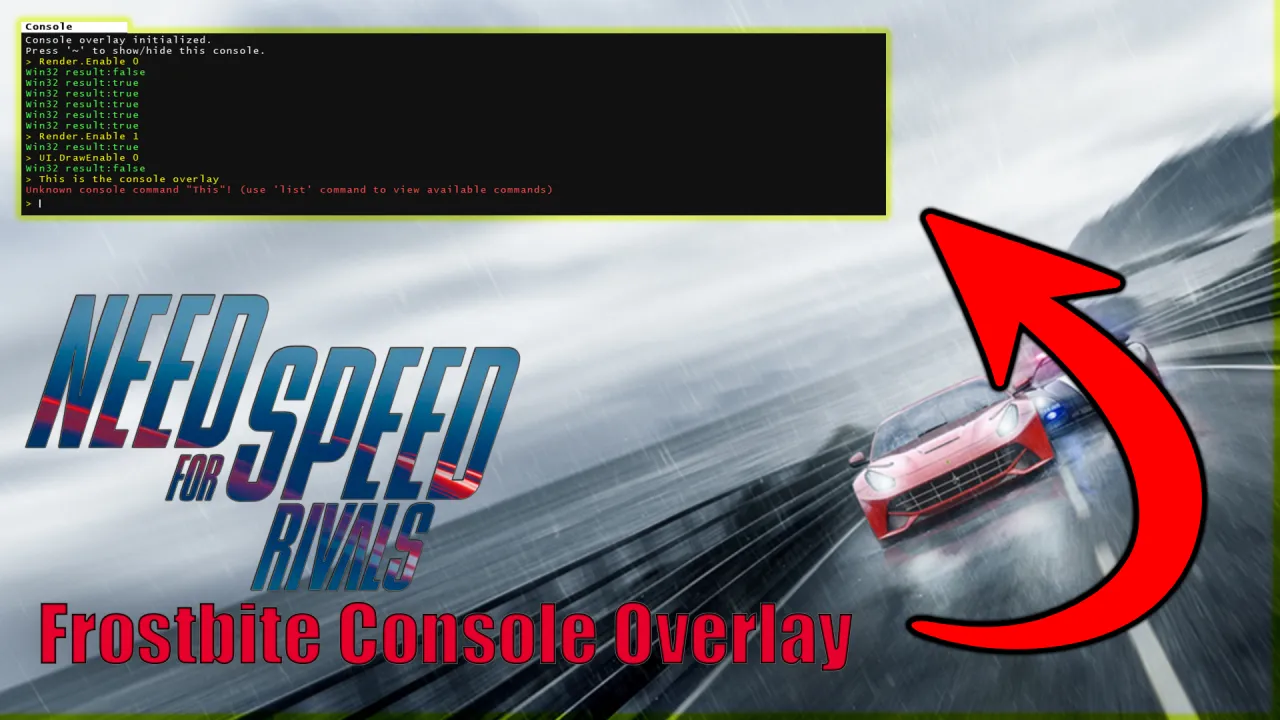
Made for Need For Speed Rivals by Pooka
TL;DR: This mod unlocks all console commands and adds a custom console overlay that can be used to execute commands directly in-game. This can be toggled by pressing the '~' key. Read below:
Frostbite Console Unlocker is a diagnostic and modding utility for Need For Speed Rivals that restores access to the game's hidden developer console by injecting a custom-made one into the game! This is the perfect tool to use if you're curious what's actually going on under the hood, want to explore and tweak settings the retail game normally hides from you, or you're building/testing your own mods and need direct access to the engine's internal commands. Like other console-unlock tools for Unreal Engine and similar engines, this brings that same kind of developer-level access to Frostbite games.
How does this work?
Many Frostbite games such as NFS Rivals ship with full developer console functions built into the game. However, most games either disable console use entirely or deliberately lock away the full functionality of what you can do with it. This mod aims to restore all of this, while also adding a few extra improvements under the hood without affecting in-game performance. Upon game launch, the DLL will automatically find all console functions and fully unlock them dynamically, as well as inject its own custom console overlay so you can type your own commands directly in-game!
This is fully compatible with all mods and is safe to use online (well now it's shut down), as this only ever affects the client side and can't affect server settings.
How do I use this?
Once the DLL is installed, simply press the '~' key on your keyboard while in-game to open the console - just like other PC games such as CSGO or Fortnite (when using UUU). From here, you can do the following (scroll down to see best use-case examples):
- Type any console command and see live output as you go, including the execution result and any possible errors
- Autocomplete - start typing and get matching suggestions with their type which can be selected with the arrow keys, so you don't need to already know exact command names
- Copy, paste, and edit like a normal text field, with full command history that you can scroll back through
- Safeguard to prevent game hangs when executing "corrupted" commands (see more below)
For more information including how to download InitfsTools, check here: https://github.com/pookatv/InitfsTools
--------------------------------------------------------------------------------------------------------------------------------------------------------
How do I install this?
1. Download the .zip file and open it
2. Then, navigate to your Need For Speed Rivals directory where you have the game installed
3. Once in the directory, simply drag and drop dxgi.dll from the .zip file into the same folder as NFS14.exe
After that, that’s it - launch the game and the overlay will automatically initialize itself upon game boot!
Note: Windows Defender may incorrectly flag this as a virus; this is a false positive and you may need to allow the DLL explicitly. For any concerns, you can review the full source code here to see exactly what this DLL does: https://github.com/pookatv/InitfsTools
--------------------------------------------------------------------------------------------------------------------------------------------------------
Some examples to get you started:
Disable vignette completely by typing PostProcess.VignetteEnable false:

Visualize in-game performance using the built-in FPS graph by typing Render.PerfOverlayVisible true:

Disable the game's UI and HUD for a real cinematic feel by typing UI.DrawEnable false:

Force a wider FOV (Field of View) by typing Render.ForceFov 120:

Double the in-game resolution (e.g 1080p to 4K) by typing Render.ResolutionScale 2:

>> For a full list of commands, type list <<
Don't be afraid to keep experimenting with other console commands as well! And to save these permanently, be sure to download InitfsTools and type in the same settings at the bottom of the Game.cfg payload, inside of the last applySettings block: https://github.com/pookatv/InitfsTools
^ You can also use InitfsTools to see what value is implemented for every single command with a click of a button
Eventually, a more interactive GUI will be implemented with freecam support, cinematic settings, level loader, and much more! Stay tuned!
